Attach an image and the assistant immediately starts making sense of it.
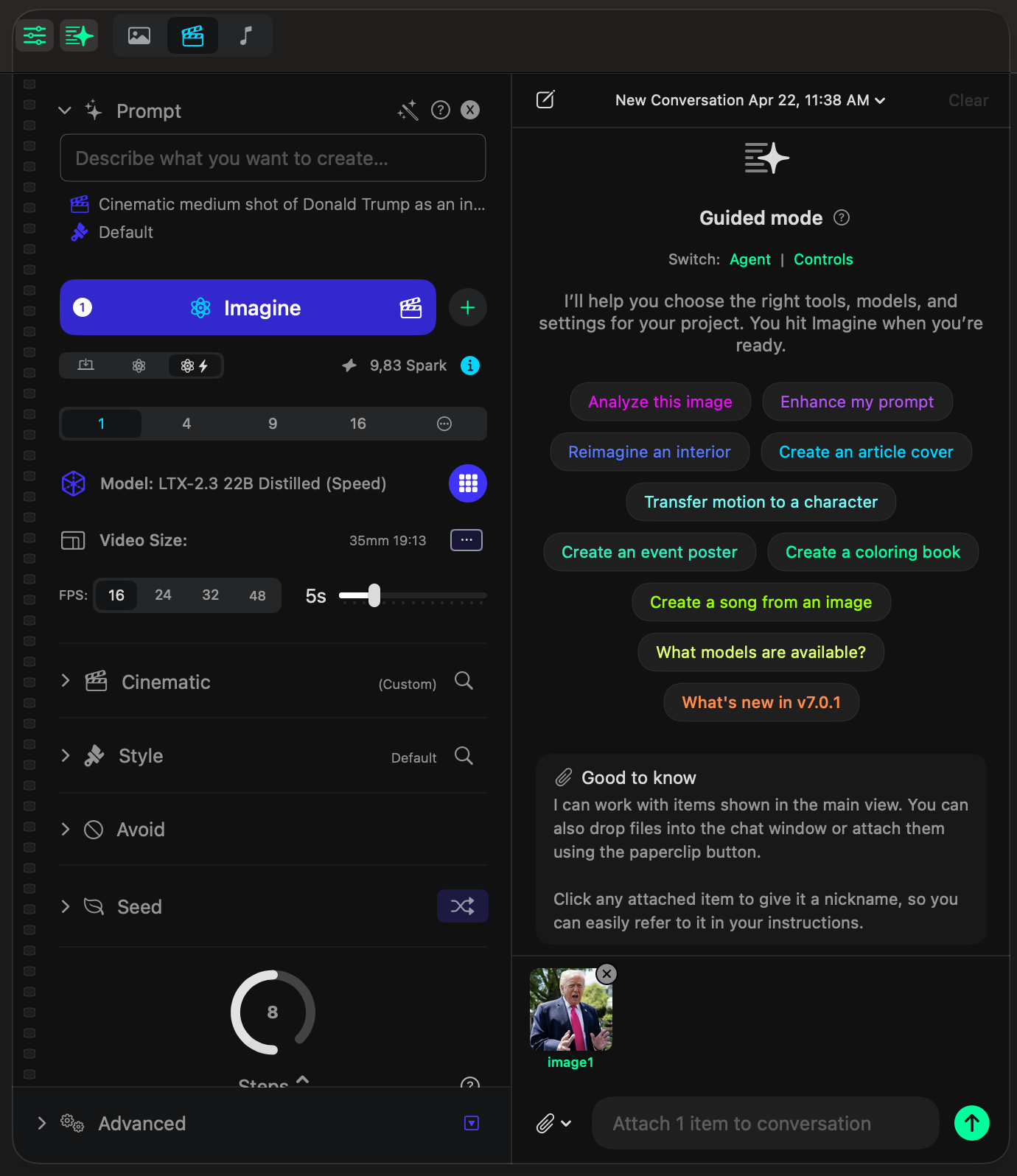
In this example, one image is attached to the conversation and the assistant reads the scene back in plain language. It identifies the subject, the setting, the expression, and the overall context without needing a separate prompt.
Then it gives you ready-made next moves like Animate, Create Video, or Change Angle. You do not have to guess what the product can do next, because it already turns the image into actionable options.
Ask for the transformation in plain language and let the assistant turn it into an editing workflow.
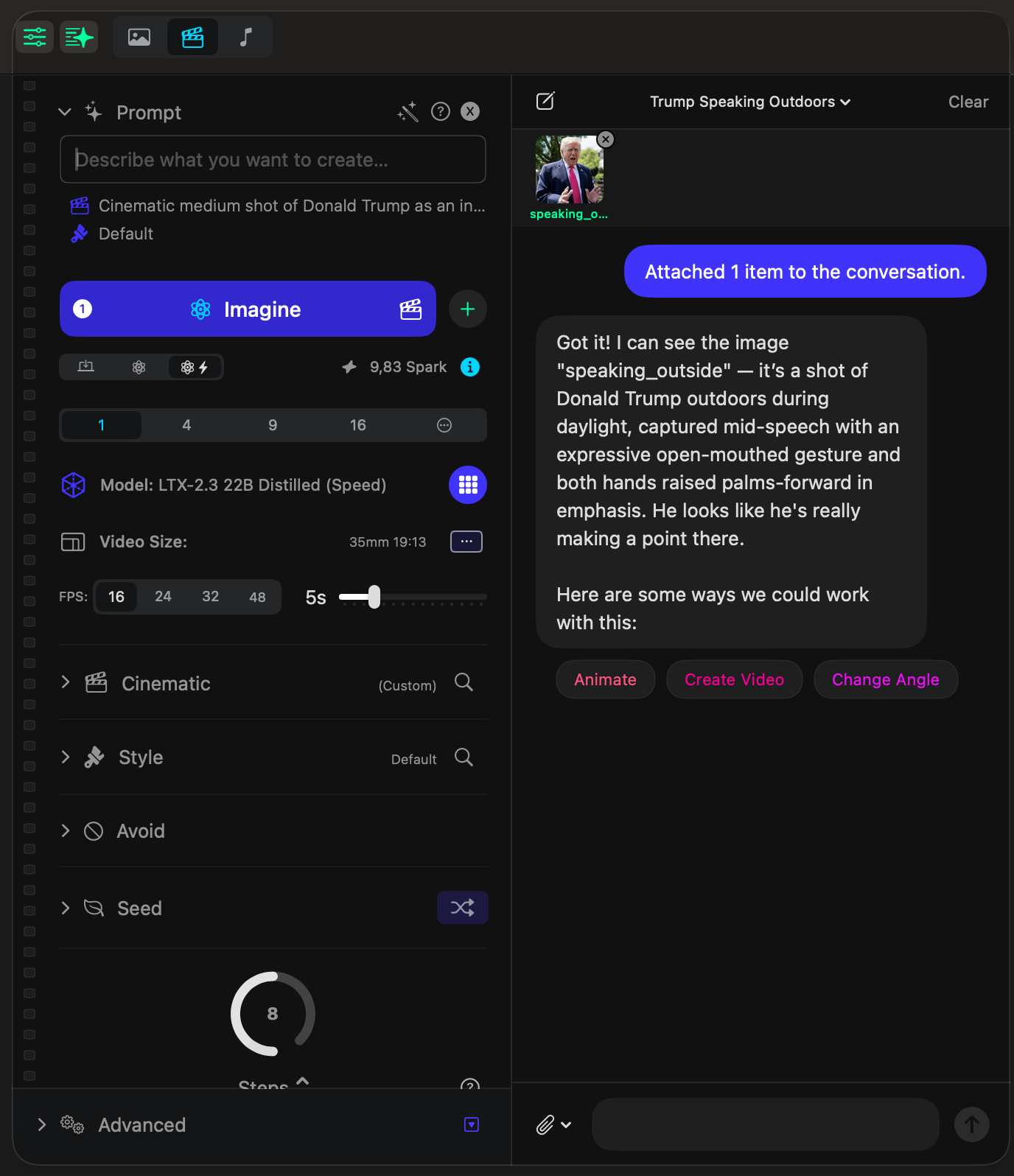
The request here is completely conversational. It does not mention models, advanced parameters, or internal tool choices. It simply describes the desired result.
That is the point of the Creative Assistant. You say what should happen, and it starts setting up the right path for image editing on its own.
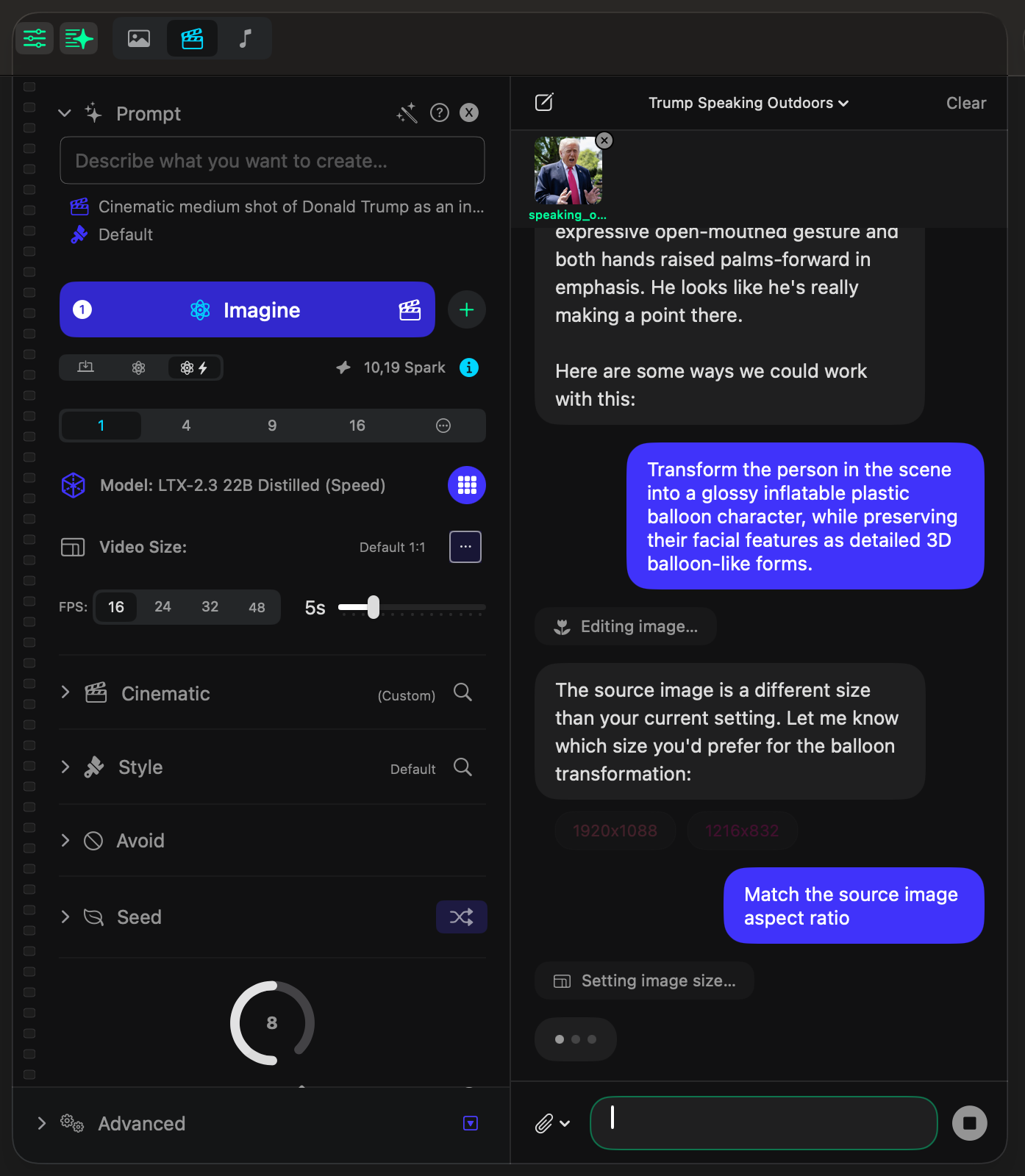
When a technical choice matters, the assistant pauses and asks the smallest useful question.
Here the source image does not match the current aspect ratio, so the assistant stops the flow briefly and asks how the size should be handled. It offers concrete options instead of dropping you into a wall of settings.
The answer can be just as simple: Match the source image aspect ratio. The assistant then applies the setting and continues the edit.
The assistant finishes the image edit and returns a ready output with smart follow-up suggestions.
This is where the whole promise becomes visible. The assistant edits the image, shows the completed result in the main canvas, and then suggests what you might want to do next.
In this example, it proposes Animate it, Try a different style, Upscale it, and Change angle. The output is not a dead end. It becomes the start of the next move.
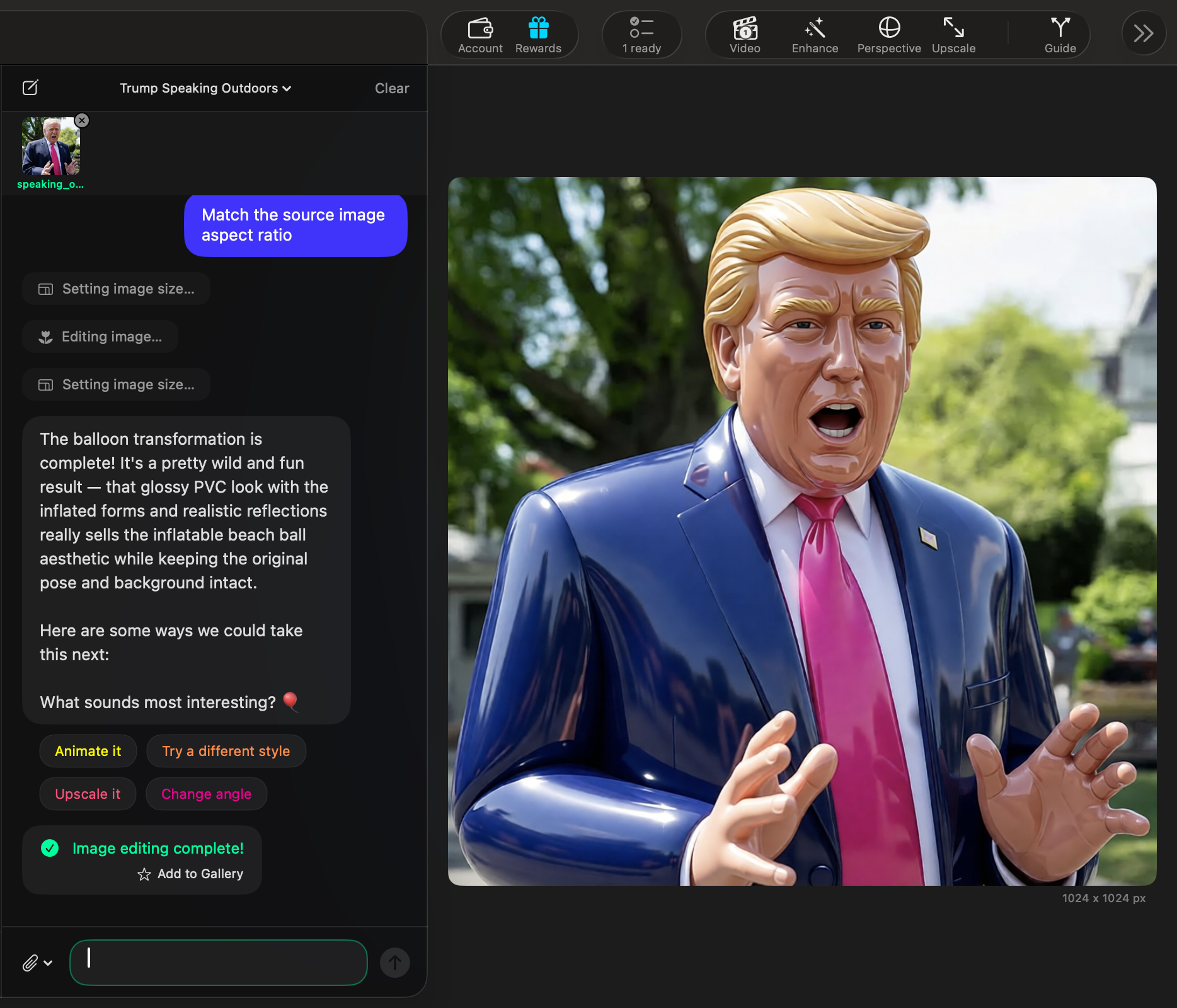
If you want to show the transformation more clearly, this is also the perfect moment to compare the original source image with the balloon version side by side.


Use the finished image as the source, ask for the video in one more plain-language prompt, and peek into the background activity anytime.
Once the balloon-style image is ready, you can keep the same conversation going and ask the assistant to animate that exact result. You are still working in natural language. You are not switching into a separate technical workflow just to get motion.
This is what makes the Creative Assistant feel cohesive: one result becomes the input for the next step. The assistant keeps the character, the look, and the context in place while moving you from still image to video.
The same conversation carries the image into video, keeping the prompt, the generated clip, and the next actions visible in one place.
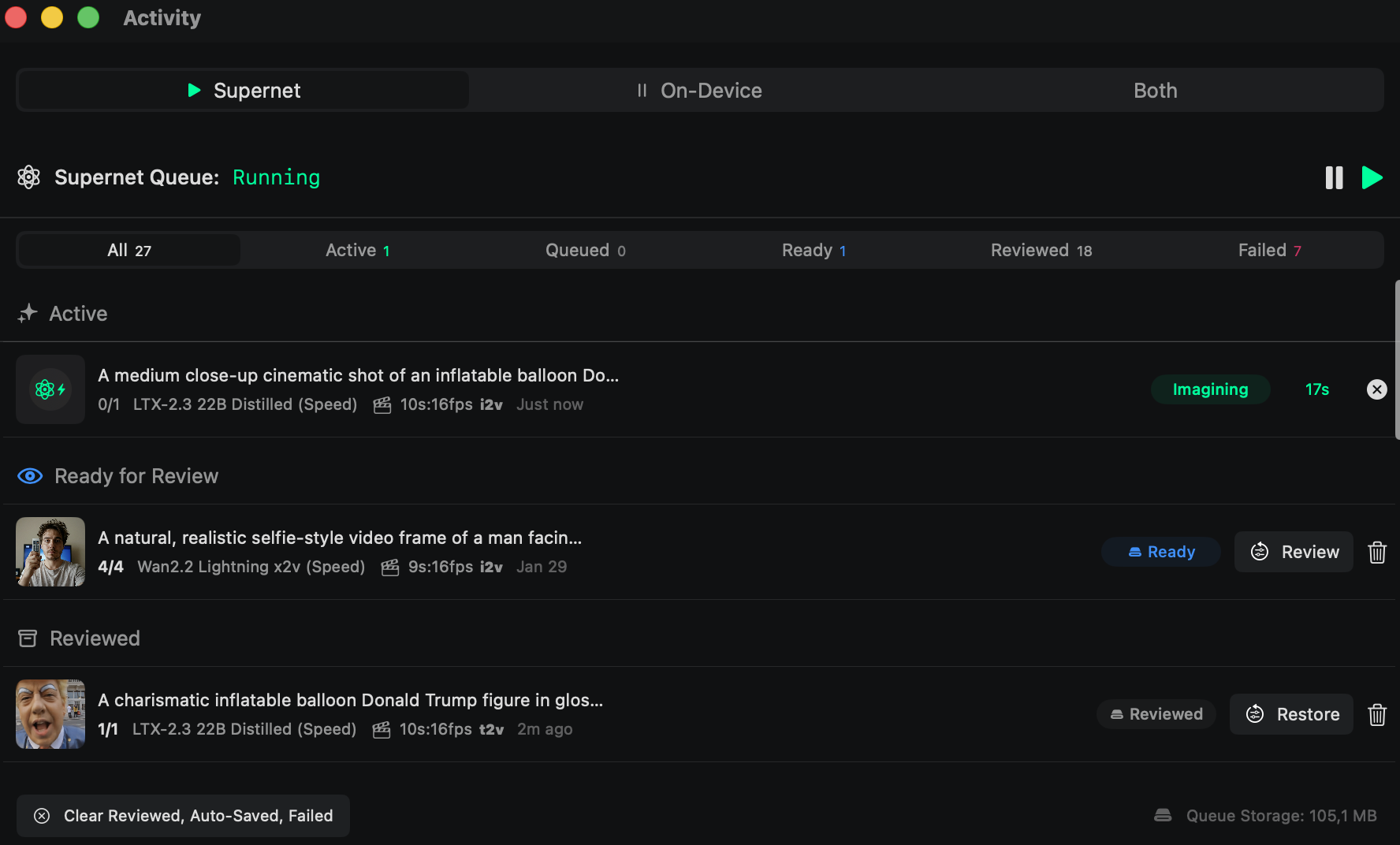
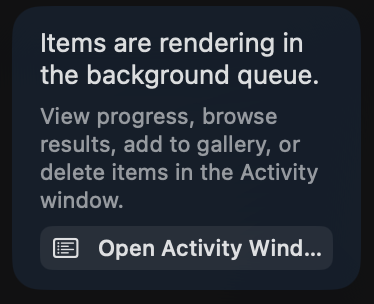
And if you want to check what is happening in the background while the job runs, you can always open the Activity view. It shows what is active, what is ready for review, what was already reviewed, and the queue details without breaking the flow.
Activity gives you a live view of what the agent is imagining now, what is ready next, and how the queue is moving.
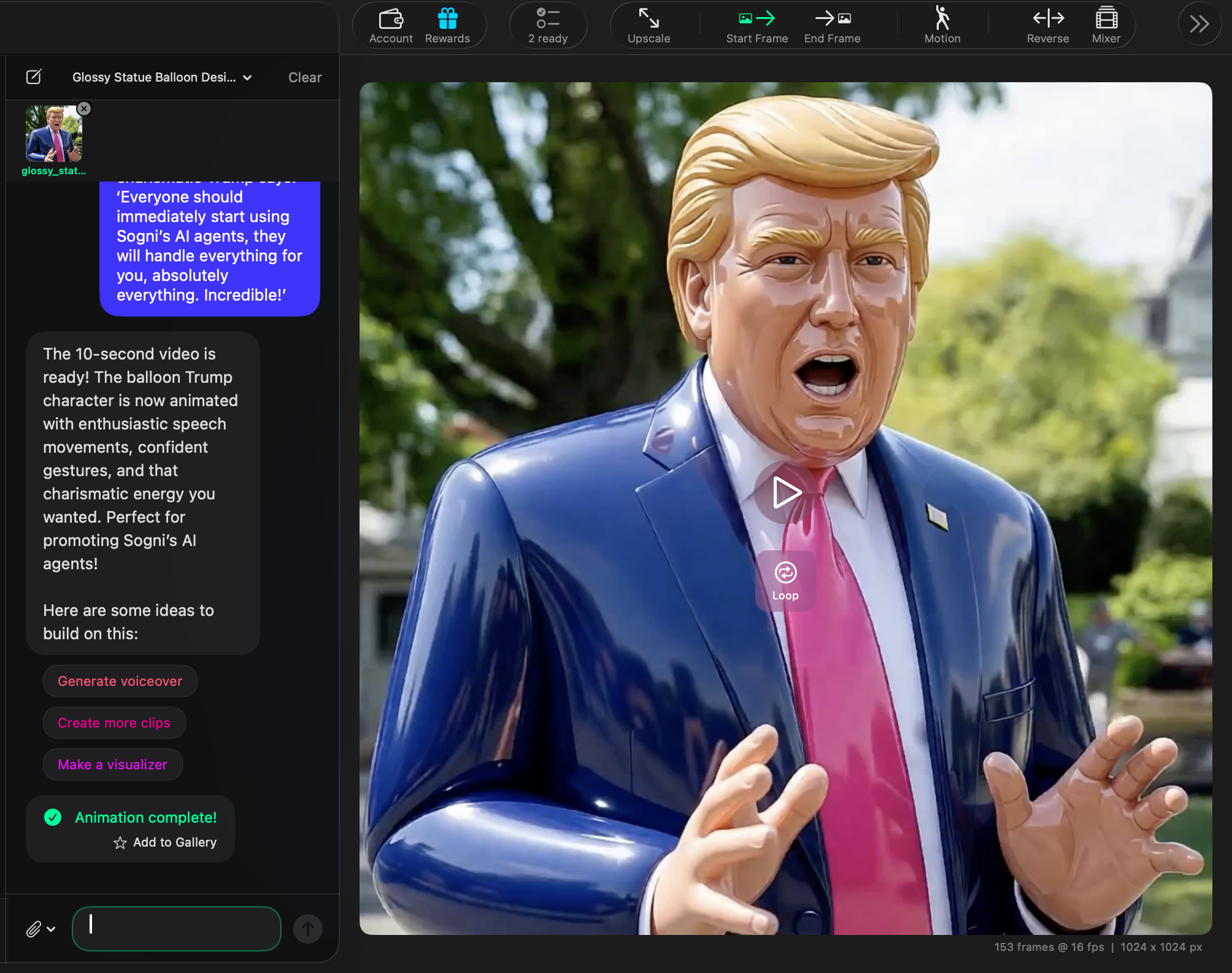
The assistant returns the finished video, explains the result, and gives you the next actions immediately.
When the animation is done, the assistant does not stop at the render. It summarizes what it created, keeps the finished clip visible in the main canvas, and suggests the next useful actions right away.
In this example, the follow-up ideas are Generate voiceover, Create more clips, and Make a visualizer. That keeps the workflow open and expandable instead of making you start over from scratch after every output.